
TL;DR
Valve rebuilt the CS2 crosshair on September 22, 2026 and changed it again on September 23 and September 30: values are in pixels, there are ten styles, and a current share code starts with CS and has no dashes, so any CSGO- code fails to import. For a clean headshot setup use Static Cross with thickness 1, length 5 and gap 2, and copy a pro's real crosshair from the scoreboard in a recent match demo instead of trusting code lists.
On this page
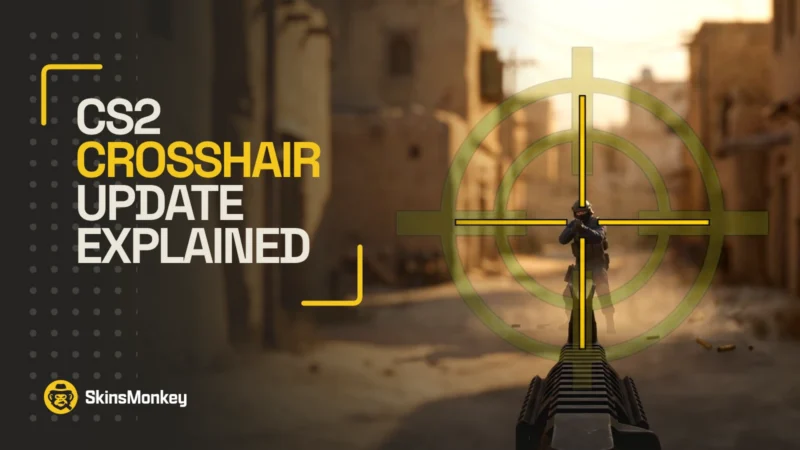
Updated October 2026. Valve rebuilt the CS2 crosshair in the Rush Hour update on September 22, 2026, then changed it twice more within eight days. Values are now real pixels, the settings live in a new Crosshair/Scopes tab, there are ten styles, and since September 30 a share code starts with CS and has no dashes. A code in the old CSGO-xxxxx-xxxxx-xxxxx-xxxxx-xxxxx format fails to import, whether it dates from CS:GO or from the first week of the new system.
That is also why this guide no longer prints pro codes. Every list we checked in October either still uses the dead CSGO- format or carries new codes that nobody can trace back to the player. Copying a pro’s crosshair from a match demo takes two minutes and gives you the real one, so below we show that method and name a recent match for ten top players.
Crosshair settings are the cheapest upgrade in CS2. No new mouse, no config file, and a crosshair that stays visible against Nuke’s ceiling lights wins you a few duels per match. Once yours is sorted, the rest of your screen is the loadout, and you can trade CS2 skins on SkinsMonkey for that part.
Three Patches in Eight Days: What Happened to CS2 Crosshair Codes
Valve’s notes for September 22 say four things about the crosshair: it is now “resolution independent”, there is a new Crosshair/Scopes tab, new styles were added, and the default is now “Dynamic Quad”. The details arrived in the next two patches.
| Date | What changed | What it did to codes |
|---|---|---|
| September 22 (Rush Hour) | Pixel units, Crosshair/Scopes tab, new styles, Dynamic Quad as the default | Codes made before this date stopped importing |
| September 23 (hotfix) | Automatic rescaling when the resolution changes, half-outlines, Static Square style, gap 0 fixed, minimum dynamic spread lowered to 64 pixels | Code layout revised again, still with the CSGO- prefix |
| September 30 | Outline color and transparency, Static Quadrant style, negative gap for the classic dynamic style, scope dot settings saved in the code, grenade crosshair during freeze time, inaccuracy display fixed | New format with a CS prefix and no dashes; CSGO- codes no longer import |
| October 2 | Grenade crosshair fixed at 3-pixel thickness, Workshop maps allowed to use the new crosshair settings | None |
CSGO- code since September 30.The pixel change is the one that matters for your aim. Before, thickness, length and gap used an arbitrary scale that the game converted based on your resolution, which is why a pro’s code looked different on 1280×960 stretched than on 1920×1080. Valve’s own example from the September 23 notes: a 1-pixel crosshair with 8-pixel bars and a 4-pixel gap is simply thickness 1, length 8, gap 4.
If you change resolution later, the game rescales those numbers so the crosshair keeps its proportions. Valve’s example is a thickness of 2 set at 1280×720, which becomes 4 at 2560×1440. Aspect ratio and color still shape what you see, so a crosshair is not pixel-identical on every monitor, but an imported code is now a much more stable starting point.
One September 30 change is easy to miss. Hold any grenade attack button during freeze time and the grenade crosshair now appears, so you can line up an insta-smoke before the round starts. Our breakdown of the CS2 crosshair update covers each patch in more detail.
All 10 CS2 Crosshair Styles Explained
The style is set with cl_crosshairstyle, the same name it had in CS:GO, now with values 0 to 9. Valve’s notes name Dynamic Quad, Static Square, Static Quadrant and the classic dynamic style; the full list and the numbers below are what players mapped from the menu to the console variable, so treat the numbering as community-documented.
- 0 Dynamic Cross. Opens up to show the weapon’s real spread and inaccuracy. Valve says the new dynamic styles use a baseline of 64 pixels, and the Dynamic Spread Limit setting caps how far they open.
- 1 Dynamic Circle. Same tracking, drawn as a circle.
- 2 Dynamic Cross (Classic). The style Valve’s notes call “classic dynamic”. Since September 30 it is the only style that accepts a negative gap, and its alpha settings move in 0.01 steps.
- 3 Static Circle. A fixed circle.
- 4 Static Cross. The classic static crosshair that most pros used before the update.
- 5 Dynamic Cross (Legacy/Shot Feedback). The older behavior that reacts when you fire.
- 6 Dot Only. A single dot. Popular with AWPers and Deagle players.
- 7 Dynamic Quad. The default for new installs, which Valve says “better represents weapon accuracy”. Four bars for reference plus a layer that opens as your accuracy drops.
- 8 Static Square. Added in the September 23 hotfix. A hollow square that stays in place.
- 9 Static Quadrant. Added on September 30. Four fixed elements that do not spread when you move or shoot, with a Quadrant Size slider.
Our take after a month on the new system: Static Cross (4) is still the answer for rifling. Dynamic Quad is a fair default for players in their first hundred hours, because it shows how badly running and jumping wreck your accuracy. Once you know that, the moving layer only pulls your eyes off the head. If you played with a negative gap in CS:GO and miss it, Dynamic Cross (Classic) is the only style that takes one now, and it comes with dynamic behavior attached.
Which Is The Best CS2 Crosshair?
Most pros use a small static crosshair in bright green or cyan, which stands out from the brown and gray tones of most maps. The update did not change that. What changed is that “small” now has a concrete meaning: a 1-pixel thick cross with bars of a few pixels and a gap between 0 and 3 is an exact setting instead of a guess on a resolution-dependent scale.
A static crosshair stays completely still when you move or shoot, and that fixed center point is what builds muscle memory. Dynamic crosshairs expand with movement and recoil, which helps when you are learning CS2 spray patterns, but they get chaotic in a real gunfight.
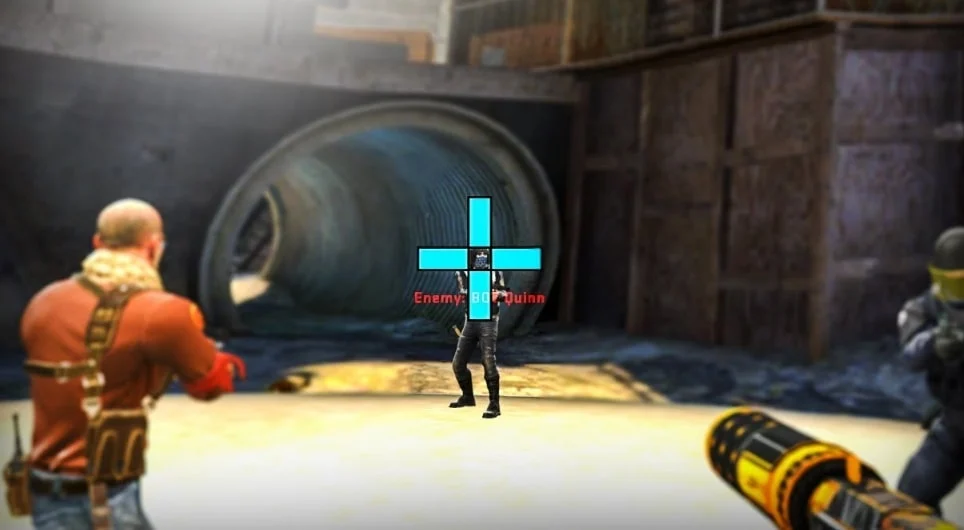
Color plays a bigger role than most people think. Bright green and cyan dominate because they do not blend into map backgrounds or odd lighting. Size and gap are a trade-off between two bad options. Too thin, and the crosshair disappears mid-spray against a bright wall. Too thick, and it covers the head you are trying to hit at long range. That is why so many good players land on similar dimensions.
What Is The CS2 Crosshair?
The crosshair is the marker in the middle of your screen that shows roughly where your bullets will land. Roughly is the key word: with recoil and movement inaccuracy, the crosshair is an estimate, and Valve’s reason for the new dynamic default is to show newer players how much their accuracy collapses when they run and shoot.
Pros do not need that reminder, so they pick a static style and tune everything else through the settings tab or CS2 crosshair commands.
Why Should You Change the CS2 Default Crosshair?
Dynamic Quad is a weak pick for CS2 competitive play. It is honest about your accuracy, which is useful for a week, and then it becomes a distraction in every duel where you are already standing still. The quickest fix is switching to Static Cross and keeping similar dimensions. If you like the four-part look, Static Quadrant keeps it without the movement.

Most players who change the color go for green, cyan, yellow or magenta, depending on which maps they play most.
Things to Consider When Choosing a Crosshair
CS2 is a team game, but every duel is personal, and the crosshair sits in the middle of every one of them. A few rules that survived the update:
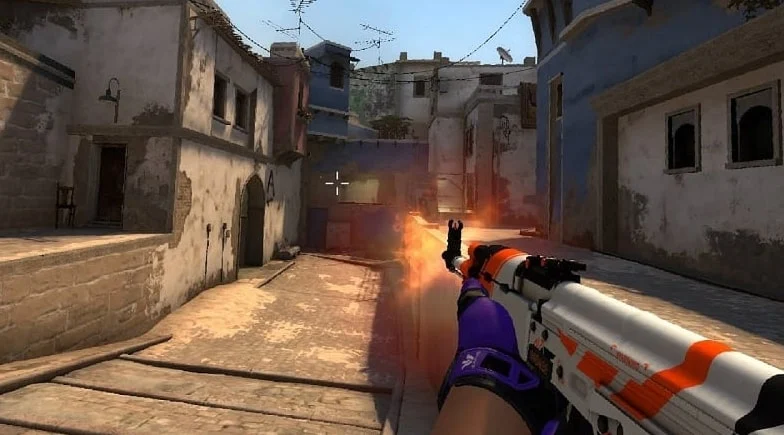
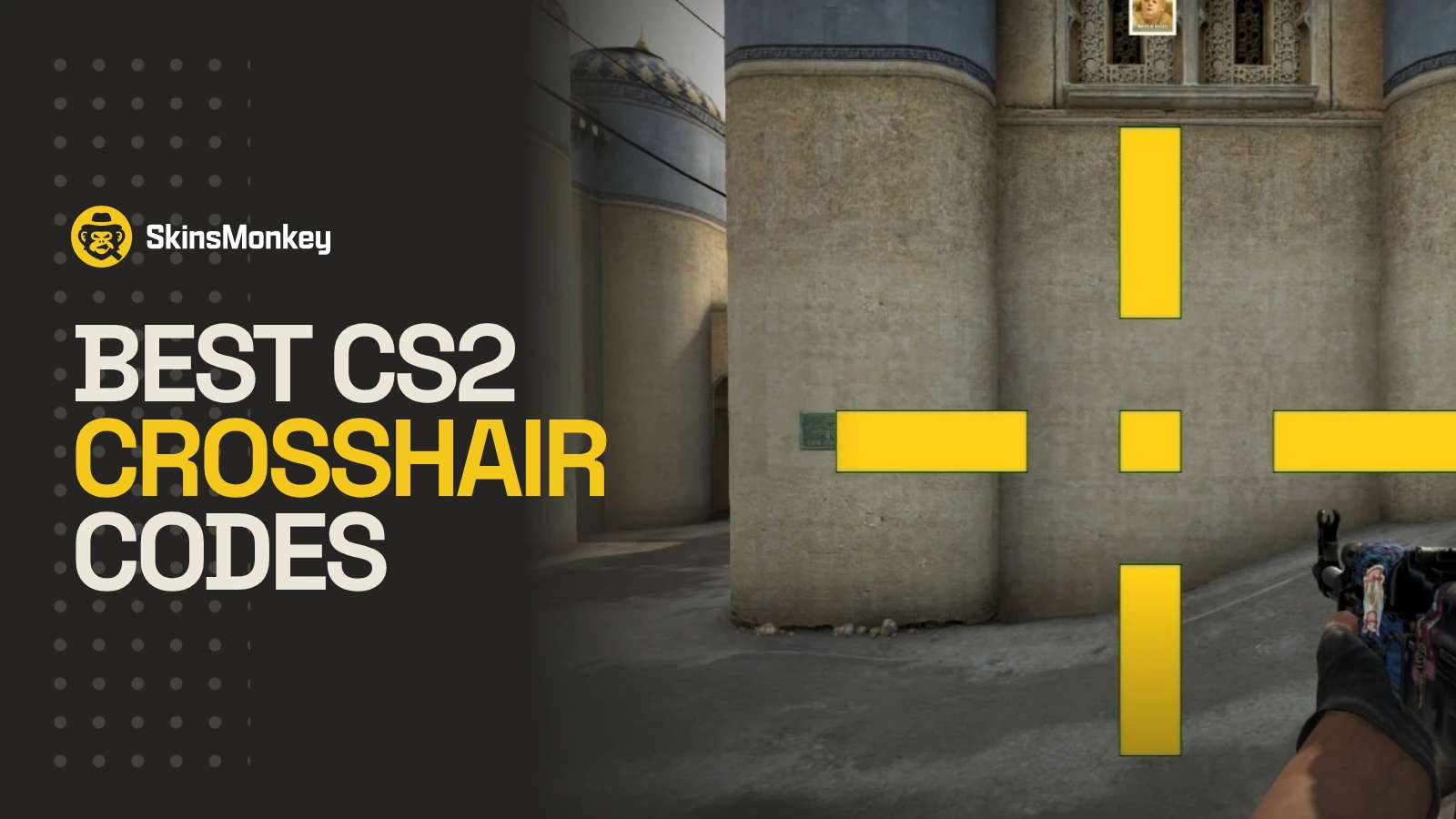
- Go small and static. Static Cross with 1-pixel thickness takes minimal screen space and does not move when an enemy peeks.
- Decide on the center dot. Some players find a dot improves precision, others want the middle empty so they can see the head. Dot Only (style 6) is its own thing and works well for AWP mains.
- Stay at 1 or 2 pixels thick. With real pixel units there is no reason to guess anymore.
- Pick a color that is visible on every map. Green, cyan, yellow or magenta. White and gray vanish on Ancient and Nuke.
- Use the outline color on bright maps. Since September 30 the outline has its own color and transparency, so a thin dark outline can keep a light crosshair readable without making it look heavy.
- Test in the preview. The Crosshair/Scopes tab shows the crosshair on map backgrounds and player models before you load a match.
Best CS2 Crosshair Settings for Headshots (New Commands)
Your crosshair should be about the size of an opponent’s head at mid range. Anything bigger covers the target, anything smaller disappears against bright textures. Most pros run a small static cross without a center dot.

A clean headshot crosshair in the new pixel units. Paste it into the console line by line, or drop it into your CS2 autoexec file:
cl_crosshairstyle 4cl_crosshair_thickness 1cl_crosshair_length 5cl_crosshair_gap 2cl_crosshairdot 0cl_crosshair_t 0cl_crosshaircolor_r 0cl_crosshaircolor_g 255cl_crosshaircolor_b 0cl_crosshaircolor_a 255
The numbers are pixels at the resolution you set them on. Tighten the gap to 0 or 1 if you want a smaller center, or drop the length to 2 or 3 for a compact cross. If you turn the outline on in the tab, its color and transparency now have their own values: cl_crosshairoutline_r, _g, _b and _a.
Old vs New CS2 Crosshair Commands
If you kept an autoexec from before September 22, its crosshair lines use the old names. Replace them with the new ones:
| Before September 22 | Now | Notes |
|---|---|---|
cl_crosshairsize | cl_crosshair_length | Pixels |
cl_crosshairthickness | cl_crosshair_thickness | Pixels |
cl_crosshairgap | cl_crosshair_gap | Pixels; negative values only with Dynamic Cross (Classic) |
cl_crosshairalpha | cl_crosshaircolor_a | Crosshair transparency |
cl_crosshairstyle | cl_crosshairstyle | Same name, now 0 to 9 |
| (new) | cl_crosshairoutline_r, _g, _b, _a | Outline color and transparency, added September 30 |
| (new) | cl_crosshair_dynamic_spread_limit | How far the dynamic styles open |
| Scope dot settings | cl_ironsight_dot_scale, cl_ironsight_usecrosshaircolor | Scope dot size and color, saved in the share code since September 30 |
cl_crosshair_style with an underscore; the variable is cl_crosshairstyle.Color is set through the RGB values, and the outline mode (none, half or full) through the settings tab. The rest of the console lives in our CS2 console commands guide.
How to Change CS2 Crosshair Settings After Rush Hour
There are three ways to build your own CS2 crosshair settings. The in-game tab is the best one now, because it finally has a proper preview.
Editing Crosshairs in the Crosshair/Scopes Tab
- Start the game and open Settings.
- Click the Crosshair/Scopes tab. Everything crosshair-related, including scope settings, is here now, not under Game.
- Pick a style, then set thickness, length, gap, color and outline. Use the preview backgrounds to check visibility on the maps you play.
- Click Share to export your code once you are happy. Since September 30 the code also carries your scope dot size and color. Save it somewhere, because copying another player’s crosshair overwrites yours.
Changing CS2 Crosshairs Using Console Commands
The classic way, and still the fastest if you already know what you want. Enable the developer console in Settings, open it with the tilde key, paste the commands from the list above one per line and press Enter. Put the same lines in an autoexec to have them load with the game. A lot of command lists on the web still use the pre-update names, so check them against the table above.
Using Steam Workshop
The third method is a custom CS2 map from the Steam Workshop. Search for “Crosshair Generator”, subscribe, and load it from Workshop Maps to try presets against bots. Valve added the new crosshair settings to the Workshop variable whitelist on October 2, so maps can now set them. Generator maps that have not been rebuilt since then may still hand out old-scale values, so treat their presets as a starting point.
Pro Crosshairs in October 2026: Copy Them From a Demo
We removed the code table this guide used to carry. Those codes were the last ones the pros used before Rush Hour, all of them in the CSGO- format that no longer imports. The new-format lists we found in October are not much better: none says where its codes come from, and one popular list gives two different players the exact same code. A crosshair you copy from a match yourself is the one the player actually used that day.
How to Copy a Pro’s Crosshair From GOTV or a Demo
- Pick a match the player played after September 30, so the crosshair in it uses the current format. The table below names one for each player.
- Download the GOTV demo from that match’s page on HLTV, put the
.demfile in your CS2game\csgofolder and load it withplaydemofollowed by the file name in the console. - Skip to a round where the player is alive, hold Tab to open the scoreboard and right-click to free the cursor.
- Click the player’s name, choose Copy Crosshair and confirm. This replaces your own crosshair, so share and save your code first.
- Open Settings, go to Crosshair/Scopes and click Share to save the pro’s code for later.
Since the October 14 update the demo viewer shows a progress bar for downloads and lets you use the free and chase cameras while the demo is paused, which makes it easier to find the right player.
| Player | Team | Role | A recent match to copy from |
|---|---|---|---|
| ZywOo | Vitality | AWP | ESL Pro League Season 24 vs MOUZ, October 11 |
| ropz | Vitality | Rifler | ESL Pro League Season 24 vs MOUZ, October 11 |
| donk | Spirit | Entry rifler | ESL Pro League Season 24 vs Falcons, October 9 |
| sh1ro | Spirit | AWP | ESL Pro League Season 24 vs Falcons, October 9 |
| NiKo | Falcons | Rifler | ESL Pro League Season 24 vs Spirit, October 9 |
| m0NESY | Falcons | AWP | Thunderpick World Championship 2026 vs Aurora, October 18 |
| s1mple | BC.Game | AWP | Stake Pulse Beat III vs MIBR, October 15 |
| b1t | NAVI | Rifler | ESL Pro League Season 24 vs PARIVISION (Swiss stage) |
| KSCERATO | FURIA | Rifler | Thunderpick World Championship 2026 vs Aurora |
| Twistzz | FaZe | Rifler | Roman Imperium Cup IX vs NAVI Junior, October 10 |
If you only want donk’s setup, our donk CS2 settings page has his sensitivity, resolution and viewmodel next to the same copy steps.
How to Import a Crosshair Code
- Open Settings and go to the Crosshair/Scopes tab.
- Find the preview box, where Share and Import sit together, and click Import.
- Paste the full code. A current code starts with
CSand has no dashes. - If you see “Invalid or old crosshair code”, the code is in an old format. Anything starting with
CSGO-falls in that group. Copy the crosshair again from a match, ask the owner for a fresh export, or rebuild it by hand. - Load a practice map before a real match to confirm your new crosshair settings.
How to Convert an Old CS2 Crosshair Code
Valve has not shipped a converter, and none of the patch notes up to October 14 mention one. Community converters read the old code and write a new one. Check that the tool you use outputs a code starting with CS: converters built in the first week after Rush Hour wrote CSGO- codes, and those stopped importing on September 30. The result is an approximation either way, so test it in a private match before Premier.
Two old settings do not carry over cleanly. A negative gap only survives if you switch to Dynamic Cross (Classic); every other style starts at 0. The old 0.5 outline becomes none, half or full, although since September 30 you can tone a full outline down with its own color and transparency. If your old crosshair leaned on either, plan on a few rounds of Deathmatch.
Copying an Opponent’s Crosshair Mid-Match
The same scoreboard trick works in a live game, and since everyone in your lobby is on the new system, what you copy imports cleanly:
- Hold Tab to open the scoreboard and right-click to free the cursor.
- Click the player whose crosshair you want.
- Select Copy Crosshair.
- Confirm the replacement.
Save your own code first if you like your current setup, since this overwrites it immediately. If the option is not visible in your game mode, spectating that player usually exposes it.
Our Starting Point for October 2026
The new crosshair system is a better one. Pixel units end the resolution guessing game, the preview tab is what the Game tab should have been years ago, and the share code now carries outline color and the scope dot as well. Start with Static Cross at thickness 1, length 5 and gap 2, test it on the map previews, and when you want a pro’s exact setup, copy it from a demo instead of trusting a list. Between Deathmatch sessions you can check the skins you want to see behind that crosshair and trade for them on SkinsMonkey with instant bot trades.
Skins to see behind your new crosshair

If you enjoyed this article, check out some of our other posts:
- CS2 Crosshair Update: why your old code says invalid
- CS2 Rush Hour Update: everything that changed
- donk CS2 settings and crosshair
- Best CS2 Console Commands
- CS2 Rush Mode Guide
- Most popular CS2 scams
Bottom line
Switch to Static Cross at thickness 1, length 5 and gap 2, and copy pro crosshairs only from recent demos.
Dynamic Quad has done its job once you are past your first hundred hours, so move to Static Cross and keep the cross small. In pixel units a 1-pixel cross with a gap between 0 and 3 is an exact setting, and the Crosshair/Scopes preview shows it on map backgrounds before you load a match. AWP mains can try Dot Only, and anyone who misses a negative gap needs Dynamic Cross (Classic).
For a pro's setup, load the demo of a match the player played after September 30 and use Copy Crosshair on the scoreboard; our table names a match for ten players. Skip any list that still prints CSGO- codes, because none of them import. Save your own code first, since copying overwrites it.
FAQ
Why does my CS2 crosshair code say invalid or old?
Because it is in a format the game no longer reads. Codes created before the Rush Hour update of September 22, 2026 stopped importing, and since the September 30 patch every code that starts with CSGO- fails as well. Copy the crosshair again from a match, convert the code with a tool that outputs the new CS format, or rebuild it in the Crosshair/Scopes tab.
What does a new CS2 crosshair code look like?
Since September 30, 2026 a CS2 crosshair code starts with CS and has no dashes. The old format, CSGO- followed by five groups of five characters, no longer imports. The new code also stores your outline color and scope dot settings.
How do I copy a pro player's crosshair in CS2?
Copy it from the scoreboard in a match demo. Load a GOTV demo of a match played after September 30, hold Tab, right-click to free the cursor, click the player's name and choose Copy Crosshair. This replaces your own crosshair, so save your code first.
How many crosshair styles are there in CS2?
Ten, set with cl_crosshairstyle from 0 to 9. The Rush Hour update added the first new styles on September 22, 2026, Static Square followed on September 23 and Static Quadrant on September 30. The default for new installs is Dynamic Quad.
Can I use a negative crosshair gap in CS2?
Only with the Dynamic Cross (Classic) style. Valve removed negative gaps with the pixel rework on September 22, 2026 and allowed them again for the classic dynamic style on September 30. Static styles still start at a gap of 0.
Was this article helpful?One tap. It tells us what to update first.
Be the first to rate this article.
Thanks, noted. Alex reads these before every update.
Sources
- Valve: Counter-Strike 2 Update, September 22, 2026 (Rush Hour release notes)
- Valve: Rush Hour announcement, September 22, 2026
- Valve: Counter-Strike 2 Update, September 23, 2026 (crosshair units, rescaling, half-outlines, Static Square)
- Valve: Counter-Strike 2 Update, September 30, 2026 (outline color, Static Quadrant, negative gap, scope dot, share code format)
- Valve: Counter-Strike 2 Update, October 2, 2026 (grenade crosshair fix, Workshop whitelist)
- Valve: Counter-Strike 2 Update, October 14, 2026 (demo viewer improvements)
- HLTV: Silent reload mechanic arrives in new CS update
- Fragster: CS2 update expands crosshair settings again
- esports.gg: ESL Pro League Season 24 Swiss stage results
- csgo-sharecode on GitHub (share code formats and variable names) (data)
- csxhair on GitHub (share code support after Rush Hour) (data)
- HLTV player profiles (teams and recent matches, checked October 20, 2026) (data)