
On this page
There are various console commands you can use in CS2. The most important of these are the bot commands used to practice. You can manage bots with various commands that you can use to improve your CS2 gaming experience.
In this way, you can make your daily CS2 practice easier. There are also hundreds of console commands, not just bot commands, which let you change your graphics, mouse and many other settings. In today’s article, we will only examine practice commands for bots.
We will also show you how to activate these console commands. If you are ready, let’s take a look at the details.
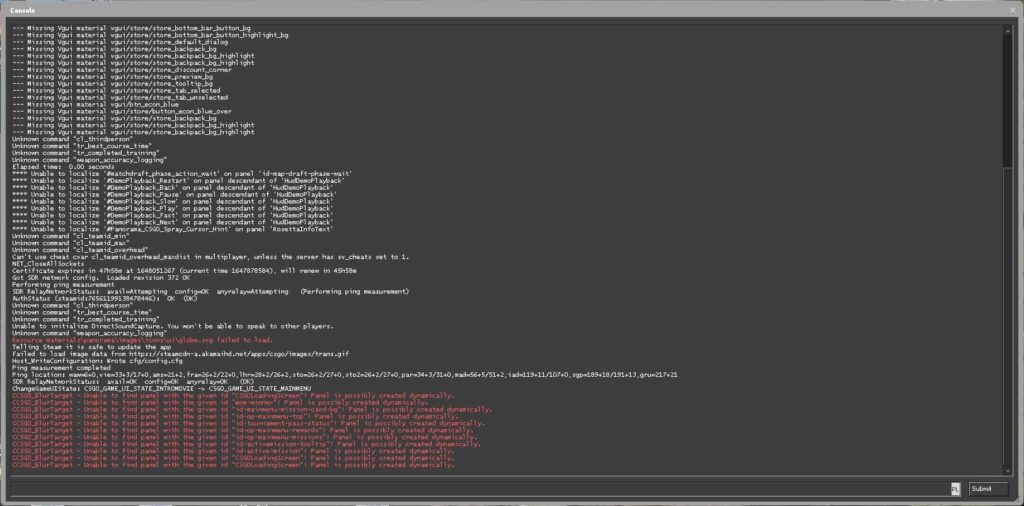
How to Open the CS2 Developer Console?
Before giving you CS2 console commands, we would like to tell you where you can add these commands. There are 3 methods in total. You can activate the commands you want by trying any of these 3 methods. Now let’s see how to enable the developer console step by step.
Method 1: Enabling the Developer Console
- First, start Counter-Strike 2.
- After the game opens, click the gear icon to open the Settings menu.
- Here you will see a section with various settings. Click on “Game” at the top.
- In the Game settings, find the “Enable Developer Console (~)” option and set it to “Yes”.
- As you can see, that’s the whole process. You have now activated the developer console. All you have to do is press the “~” key under Esc to open it.
Method 2: Using Autoexec.cfg
This method is a little more difficult and we do not recommend it for casual players. “autoexec.cfg” is often used to make settings permanent. So instead of constantly entering commands into the developer console, you can activate the commands every time you enter the game with “autoexec.cfg”.
- The first thing you need to do first is to determine where to create the config file.
- In CS2, the folder is “…\Steam\steamapps\common\Counter-Strike Global Offensive\game\csgo\cfg” (the game folder still uses the old CS:GO name).
- You can find your autoexec.cfg file by following this folder path. If there is no autoexec.cfg in this folder, you can create one yourself in Notepad (make sure the file ends in .cfg, not .txt).
- Open the autoexec.cfg file you created and add any commands you want, one per line.
- To run the file in the game, type “exec autoexec” in the developer console, or add “+exec autoexec.cfg” to your launch options so it runs every time you start CS2. All the commands in the file will be active at once.
Method 3: Launch Options
Our final method is the launch options. We recommend it to players new to CS2, because adding commands to launch options is extremely easy. However, launch options are meant for startup settings, so they are less convenient for longer lists of console commands.
- You should always make the settings before entering the game. Therefore, before starting the game, right-click the game in your Steam library with the mouse.
- Then enter the “Properties…” section in the window opened with a right click.
- Now you will see the “General” section on the page that appears.
- At the bottom of this section you can find “Launch Options”. You can enter your commands in the space there, separated by spaces. Launch options start with a dash (for example, “-console”), while console commands start with a plus (for example, “+exec autoexec.cfg”).
- Finally, enter the commands you want and start the game. All the commands will be active.
That’s the whole process. All 3 methods work; it just depends on how much time you want to spend. Our advice is to use the second method, because you can add every command you need to the file and activate them all whenever you want.
All CS2 Bot Commands
Now that you have learned how to activate the commands in the game, you can start learning the commands. Bot commands work in a match you host yourself, such as a practice match with bots. Several of them, including bot_kill, bot_stop, bot_dont_shoot, bot_zombie, bot_mimic and bot_crouch, only work after you enable cheats with sv_cheats 1.
bot_add: It allows you to add custom bots to any team. This command is often useful when practicing.
bot_add_t: Adds a bot to the Terrorists
bot_add_ct: Adds a bot to the CT team.
bot_quota [value]: Sets the total number of bots on the server.
How to Remove Bots in CS2
bot_kick: Kicks all bots from the server.
bot_kill: Kills all bots in the game but leaves them on the server.
bot_stop: All bots freeze instantly.
bot_dont_shoot: Bots never fire their weapons.
bot_knives_only: All the bots in your game use only knives.
bot_pistols_only: All bots in your game use only pistols.
bot_all_weapons: Bots in the game can use all weapons.
bot_zombie 1: All the bots in the game become dysfunctional. They do not react to anything.
bot_difficulty [value]: You change the playing levels of the bots. There are four difficulty levels, from 0 (easy) to 3 (expert).
bot_mimic 1: Bots mimic every action you take.
bot_crouch 1: All bots crouch.
You may be looking for some commands outside of bots. There are some commands that will especially increase your gaming experience. You can find the CS2 FPS commands in this article. In this way, you can check and improve your computer’s performance while CS2 is open.
Other Bot Commands
The bot commands we listed above were the most useful. The bot commands we will share now are the advanced ones, for users who want to set everything up. Many of them date back to CS:GO, so some may require sv_cheats 1 or behave differently in CS2.
mp_free_armor 2: You give Kevlar and Helmet to all bots.
mp_free_armor 1; mp_max_armor 1: You only give Kevlar without giving Helmets to all bots. In this way, you also prevent them from purchasing Helmets.
mp_respawn_on_death_ct 1;mp_respawn_on_death_t 1: Bots respawn automatically when they die.
mp_ignore_round_win_conditions 1; mp_buy_anywhere 1; mp_buytime 999999: Keeps the round from ending and lets players buy anywhere on the map, at any time.
bot_loadout [weapon codes]: Before using this command, you must enable cheats by typing sv_cheats 1. Then you can enter bot_loadout commands.
bot_max_vision_distance_override [value]: You set the distance at which bots can see you. -1 turns the override off.
bot_allow_grenades [0 / 1]: You allow bots to use grenades. You enable it with 1.
bot_allow_machine_guns 1
bot_allow_rifles 1
bot_allow_shotguns 1
bot_allow_snipers 1
bot_allow_sub_machine_guns 1
bot_ignore_players [0 / 1]: If this command value is set to 1, bots will ignore human players (requires sv_cheats 1).
bot_randombuy 1: Bots buy the weapons they want randomly when the round starts.
bot_show_nav 1: If you set this command to 1, you can view the navigation mesh the bots use to move around the map.
player_botdiflast_s [0-3]: This command is used to determine the difficulty of the last bot standing. The default value is 2. 3 makes bots experts.
bot_goto_mark: It allows a bot to move towards the area you marked.
bot_goto_selected: This command makes the bot go to the navigation area you have selected, just like “gotomark”.
mp_humanteam [Any / CT / T]: It is used to add real non-bot players to a team of your choice.
bot_show_occupy_time [0 / 1]: With this command, you open a screen that shows the first area that bots in both teams will reach. It can cause FPS drops.
Was this article helpful?One tap. It tells us what to update first.
Be the first to rate this article.
Thanks, noted. Alex reads these before every update.