
On this page
You’ve found yourself in a terrible situation. It is any gamer’s nightmare. You want to sit down and play CS2. But, unfortunately for you, the shooter crashes, freezes, and maybe doesn’t even start.
So, why does CS2 keep crashing?
You may be surprised, but fixing the CS2 crashing issue is often simple. However, finding out what’s causing this problem is the tricky part. But don’t worry! Read this guide to the end, and you should be able to fix CS2 crashing and get back to your game on your own.

Why Is My CS2 Freezing and Crashing?
The most common reasons why you have Counter-Strike 2 crashing issues are:
- Outdated computer software
- Outdated graphics drivers
- Random bugs
- CPU or GPU overload
- Damaged or corrupted game files
- Steam issues
But don’t worry. Most of these problems have a simple fix. Read on to learn how to stop crashes in Counter-Strike 2 and many other games.
Tip: If CS2 freezes and you can’t exit from the game, press Ctrl + Shift + Esc to open Task Manager, right-click on Counter-Strike 2, and hit End Task.
Why Does CS2 Crash on Launch?
The main reasons for CS2 crashing on launch are corrupted or missing game files. Crashes can also be caused by not installing updates on your computer. Regardless of any of that, you can usually fix it in a few steps. Once you know why CS2 keeps crashing, the fix is usually simple.
How Do I Fix CS2 Crashes?
These are the easiest and most effective ways to fix your CS2 crashes. So, follow the steps and try each solution until one gets the job done.
Scenario I: Verify Integrity of Game Files
First, the easiest thing you can do is try this simple solution. It doesn’t have extremely high chances of success. But it also takes about 2 minutes to complete. So, it’s a low-risk reward fix that’s worth trying.
- Launch the Steam Client
- Navigate to your games Library
- Right-click on Counter-Strike 2 and click on Properties
- Go to the Installed Files tab
- Select “Verify Integrity of Game Files”
Second, launch CS2 when it completes and see if it starts working properly. If CS2 keeps crashing after this fix, move on to the next one.
Want to know more about CS2 launch options and how to configure them in a few steps?
Scenario II: Update Graphics Drivers
If you’re playing on a Windows PC and you haven’t run updates for a while, updating your graphics driver can fix CS2 crashes for good. Here’s what you need to do:
- Click on the Windows button on your keyboard
- Type “Device Manager“
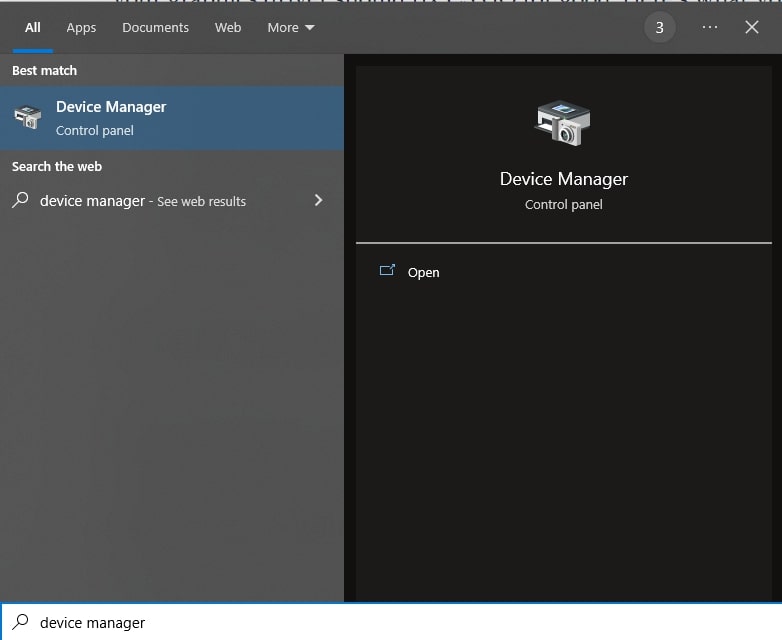
- Scroll down the list and click the drop-down arrow next to “Display Adapters“
- Right-click on the driver that shows up and select “Update driver“
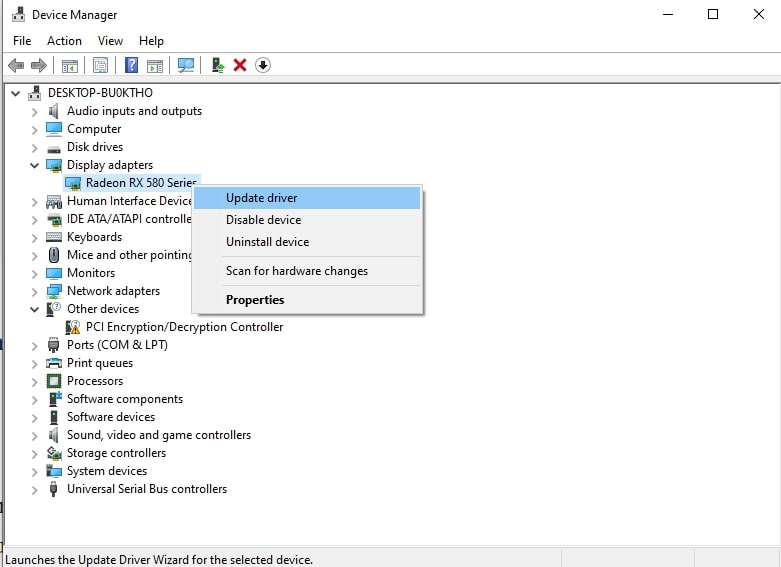
- A new window will pop up. Select “Search automatically for drivers“
If Windows finds a newer driver, it will install it automatically. Windows doesn’t always offer the newest version, though, so you can also download the latest driver directly from NVIDIA, AMD or Intel. After it is completed, restart your PC and launch CS2. The crashing issue should be fixed.
Keep in mind that this method is a useful way to update all the drivers on your computer. If a similar problem occurs, don’t hesitate to try this fix.
Scenario III: Disable Compatibility Mode
Did you know that running the game in compatibility mode is a common reason for CS2 crashing issues? This feature causes plenty of other Steam games to crash as well. So, let’s find out how to fix it.
- In Steam, right-click on Counter-Strike 2, choose Manage > Browse local files, open the game\bin\win64 folder and right-click on cs2.exe
- Select Properties
- Go to the Compatibility tab
- UNCHECK the section titled “Run this program in compatibility mode for:”
- Also, UNCHECK the section under it, titled “Run this program as an administrator“
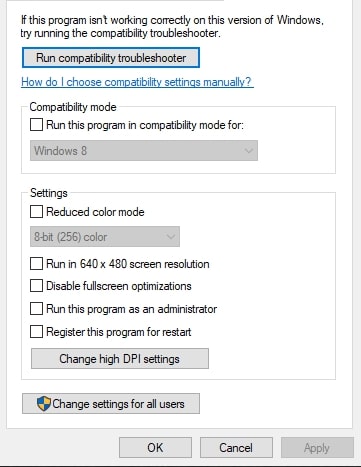
It is among the simplest solutions for the game crashing issue. But it’s also one of the most effective.
Scenario IV: Reset Launch Options and Video Settings
Broken launch options or video settings can also make the game crash. In CS:GO, the “-autoconfig” launch option reset the video settings, but it may no longer work in CS2, so start by clearing your launch options. Here’s how to do it.
- Launch Steam
- Go to Library
- Right-click on Counter-Strike 2 and go to Properties
- In the General tab, find Launch Options
- Clear the field to remove all launch options
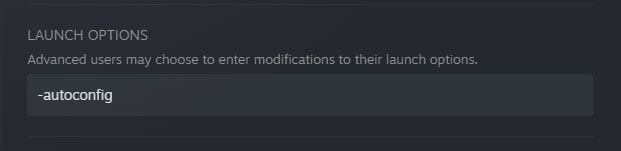
- Close the Properties window (Steam saves the change automatically)
- Now, relaunch CS2.
Tip: If CS2 still crashes, close the game and delete the cs2_video.txt file in Steam\userdata\(your Steam ID)\730\local\cfg. CS2 creates a new one with default video settings the next time it starts.
Scenario V: Raise The Priority of the Game
This fix is best for users who have slightly less powerful PCs. If you fall into this category, it could be the best solution. Try it and you should be able to play CS2 without any issues.
- First up, launch CS2
- Open the Task Manager by pressing Ctrl + Shift + Esc at the same time on your keyboard
- Navigate to the Details tab and locate cs2.exe
- Right-click on cs2.exe and hover over the button that says Set priority
- Once the options pop up, select High
- Go back to the game. Windows resets the priority every time you close CS2, so repeat these steps each session or add the “-high” launch option instead
All You Need To Know About CS2 Autoexec Files – Check The Guide
Scenario VI: Reinstall CS2
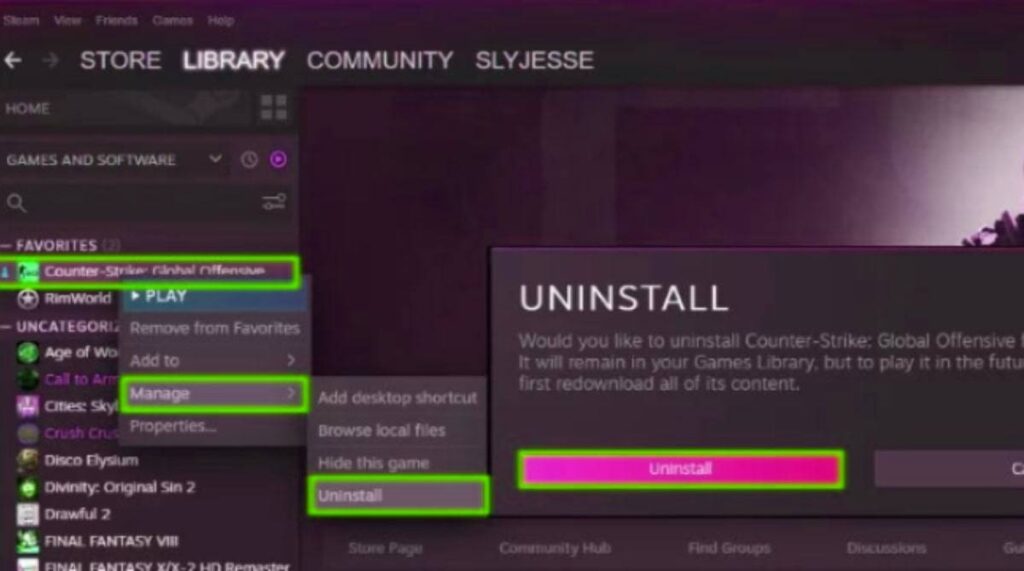
At the end of the day, if nothing else works, it’s probably best that you uninstall CS2 and install it again. You can do this from the Steam folder in your Program Files. But it’s much easier done via the Steam client. Here’s how:
- Open Steam
- Go to your Library
- Right-click on Counter-Strike 2
- Click on Manage > Uninstall
Then, restart Steam, log in, and download Counter-Strike 2 again.
Final Verdict
There could be countless reasons why CS2 keeps crashing. Sometimes it happens on map load, sometimes during a fierce battle, and sometimes the game doesn’t even start. Fortunately, you now have all the knowledge and resources to fix this problem.
So, whether it’s your graphics card, issues with the game’s default settings, the cfg folder, Steam, GPU drivers, or anything in between, now you know how to fix it. Also, if you want to trade CS2 skins with low fees, be sure to check out SkinsMonkey!
Was this article helpful?One tap. It tells us what to update first.
Be the first to rate this article.
Thanks, noted. Alex reads these before every update.