
On this page
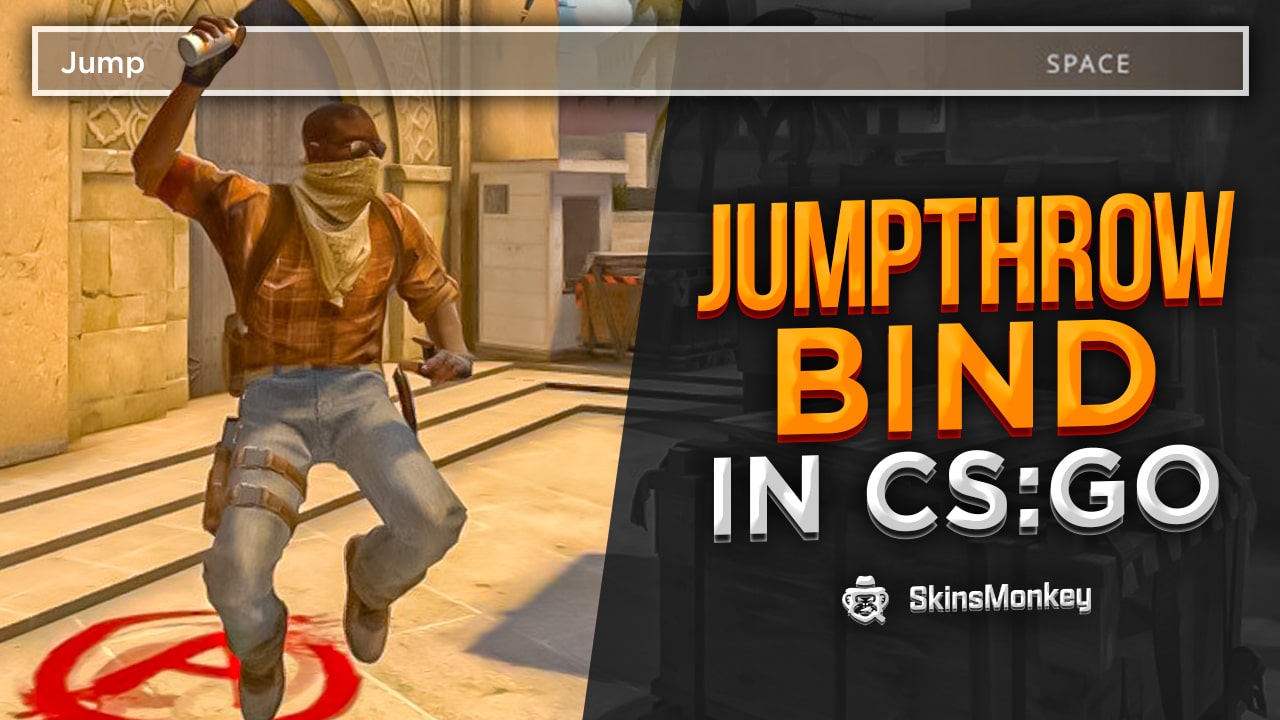
Why waste countless hours perfecting how to jump, perfectly aim, and throw a grenade in mid-air in CS2 when you can use a jump throw bind and never make a mistake? Yup, a jumpthrow bind can take care of this difficult execution for you, although since 2024 it only works on servers that allow it (more on that below).
Since you are not a robot, achieving perfect timing for jumpthrows is difficult. Even small variations or releasing the mouse button at slightly different times can lead to inconsistent outcomes, making it hard to get the same outcome every time.
Grenades play a crucial role in CS2, especially at higher ranks, where effective grenade usage can make a difference between winning and losing the match. A jumpthrow bind uses a small script to automate multiple actions with one click, ensuring the same outcome every time and eliminating the variations caused by manual throws.
Want to learn how to throw grenades like a pro? Keep reading and all will be made clear. Also, if you want to trade CS2 skins for best prices on the market, be sure to check out the rest of our website.
Key takeaways:
- A jumpthrow bind allows you to throw grenades at a further distance, extending your range and allowing you to reach normally inaccessible nade spots.
- You can set up a jumpthrow bind with console commands, but since August 2024 binds that combine jump and attack are ignored on official Valve servers.
- A jumpthrow bind won’t get you VAC banned, but in matchmaking it simply doesn’t work, and some tournaments ban it.
- Performing multiple actions at once with a jumpthrow bind ensures consistent results.
What Is JumpThrow in CS2?
Using CS2 grenades is a relatively straightforward process, and any player who tried an FPS before will most likely know how to throw them effectively. However, in Counter-Strike 2, you can throw a smoke grenade, Molotov, and all other nades much further away by mastering the jump throw. This technique is also known as a jumpthrow, or jump-throw, and can be done effortlessly via a jump throw bind.
The jumpthrow is a technique where you load up the grenade, jump, and throw it by quickly aiming at your destination. However, it can be quite difficult to pull off because it has to be done before you land after you jump. Manually releasing the left mouse button at the right time is challenging, and even slightly mistimed releasing of the mouse button can affect the throw’s consistency. Without a bind, your throws may vary across multiple times due to these small timing differences. Using a jumpthrow bind automates the release of the mouse button, making your throws consistent and accurate every time on servers where such binds are allowed.
Check out this video by Spyn to learn how to do a jumpthrow in CS2:
Also read: Best CS2 cases
What Is a JumpThrow Bind?
How it Works
A jump-throw bind in CS2 uses two commands to perform the jump and throw actions simultaneously, ensuring consistent grenade throws every time. This bind works by executing both the jump and attack commands in quick succession, eliminating manual timing errors.
The jump-throw bind is extremely useful, as executing a full jumpthrow requires you to perform a number of actions in a correct order. Without a jumpthrow bind, there can be variations in throw distance due to manual timing. It’s super easy to make a mistake and waste your grenade. Instead, you can use your favorite CS2 bind-key, such as the ALT key or any other keys, to set up your binds and let the press of a single button do all the work for you. On servers that allow it, it gives you the same result every time.
When creating your custom bind, you can easily copy the command into your autoexec file to ensure it loads every time you start the game. This allows for quick setup and customization of your binds for different actions.
Plan to sell CS2 skins? Check out our guide on how to sell items with a profit!
Is JumpThrow Bind Legal In CS2?
A jumpthrow bind is not a cheat, and having one in your config won’t get you VAC banned. However, since the August 19, 2024 update, CS2 ignores binds that combine more than one movement or attack command, such as +jump and -attack, by default. The setting that re-enables them (cl_allow_multi_input_binds 1) is cheat-protected, so on official Valve servers (Premier, Competitive and other matchmaking modes) a classic jumpthrow bind simply does nothing.
In matchmaking, you have to jump-throw manually: press jump and release the grenade at the same moment. CS2’s sub-tick system records the exact moment of each input, which makes manual jump-throws more consistent than they were in CS:GO, and a short grunt sound confirms a jump-throw. On community servers, third-party platforms and your own practice server, whether a bind works depends on the server settings and rules, so check them first.
However, when it comes to pro or semi-pro CS2 tournaments, it’s quite common for the simple bind for jump-throw not to be allowed, especially in some semi-pro tournaments where the rules can be slightly different or change over time. So, it’s important to double check the tournament rules before playing, as using a jumpthrow bind could risk breaking the rules and potentially get yourself banned.
Also check out: Cheapest AWP skins
How to Add the JumpThrow Bind?
Setting up bind commands in CS2 is super easy. But first, you have to enable the developer console in the settings. You can do this by going to your in-game CS2 settings > Game > Enable Developer Console > Yes.
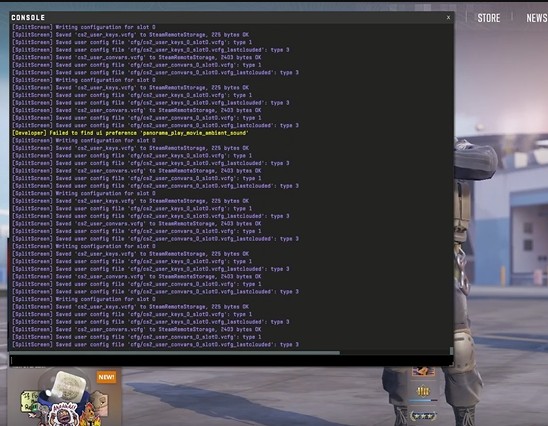
After this, open the console by pressing the tilde (~) key on your keyboard and enter this command. Remember that it only works where multi-input binds are allowed, for example on a practice server with sv_cheats 1 and cl_allow_multi_input_binds 1:
- alias “+jumpthrow” “+jump;-attack;-attack2”; alias “-jumpthrow” “-jump”; bind “X” “+jumpthrow”
The “X” is where you have to type in the button that you want to bind this command to. So now, for example, if you set your bind to the letter “T”, your jumpthrow bind will activate every time you use a grenade and press on “T”.
Using the jumpthrow bind allows you to throw long range smokes and grenades with a consistent outcome. This is especially useful for executing long-range throws that are difficult to perform manually, making your smokes more accurate and reliable in competitive play.
There’s just one tiny problem with this method. The command won’t register the next time you open up CS2. It won’t remember it and you’ll have to type it in again, and again. In order to avoid this, you have to save it in your Autoexec file. Don’t worry, here’s how to do that as well.
If you already have an Autoexec file set up, then simply find it in your CS2 file directory, open it, paste this command, and click on “Save”:
alias "+jumpthrow" "+jump;-attack;-attack2"

alias "-jumpthrow" "-jump"

bind "X" "+jumpthrow"
This will set your jumpthrow to your “X” button on the keyboard. Remember to change it to whatever key feels most convenient for you.
If you don’t already have an Autoexec file set up, then follow these steps:
- Step 1: Go to your CS2 install folder (by default Steam\steamapps\common\Counter-Strike Global Offensive)
- Step 2: Open the folder titled “game” and then the folder titled “csgo”
- Step 3: Open the folder titled “cfg”
- Step 4: Right-click on an empty spot in this folder and go to “New” > “Text Document”
- Step 5: Name this document “autoexec.cfg” and open it. Paste the same command there and click “Save”
- Step 6: Open Steam > Library > CS2, right-click on CS2, go to Properties > General > Launch Options and type in “+exec autoexec.cfg“
- Step 7: Close the Properties window and launch CS2
This will be your new Autoexec file where you can insert your new jump throw bind command and other commands.
Also read: Best StatTrak skins
How to Use the Jump-Throw Bind?
Now, it all comes down to learning how to use the jumpthrow bind. On a server that allows it, all you have to do is go to the position from where you want to throw the nade, hold left-click with the grenade in hand, and press the jumpthrow bind key that you chose. You don’t have to jump and let go of the mouse button yourself; the entire process executes as soon as you press the key. On official servers, do the same thing manually: hold the grenade, then jump and release left-click at the same moment. Also, check out the rest of our site for free CS2 skins giveaways!
If you liked this article, make sure you check out our other guides, including:
FAQ
What is a jumpthrow bind in CS2?
A jumpthrow bind is a console command that lets you throw grenades while jumping with a single key, making long-distance throws easy and consistent.
Is the jumpthrow bind legal in CS2?
Having one won’t get you VAC banned, but since August 2024 official Valve servers ignore binds that combine jump and attack, so it doesn’t work in matchmaking. On community servers and other platforms it depends on their settings and rules, and some tournaments ban it, so always check first.
How do you set up a jumpthrow bind in CS2?
Enable the developer console, paste the command, and bind it to your preferred key. To keep it permanent, save it in your autoexec.cfg file.
Was this article helpful?One tap. It tells us what to update first.
Be the first to rate this article.
Thanks, noted. Alex reads these before every update.