

On this page
Trading CS2 skins is a big deal, considering how much money is in all of the biggest trades. The CS2 skin market moves a lot of money, and traders with the most expensive Steam inventories often have a literal fortune in weapon skins, waiting to be traded away.
Because of this, all the details of the weapon skins you trade play a huge role in the process. Details such as rarity level, float value, or collection are pivotal in gauging the price of various CS2 skins. These factors are essential to consider when you inspect or buy CS2 skins, as they directly impact your ability to make informed decisions and maximize value. If you don’t want to overpay or get lowballed, you must learn how to inspect CS2 skins! Inspecting skins before you buy can save you money and help you make smarter purchases.
Key takeaways:
- You can inspect any CS2 skin to check out how it looks in-game
- Inspecting skins is important if you plan on trading, since it lets you check out all potential float values and skin patterns in-game
- Inspecting skins is legal and won’t get you VAC banned
Why Inspect CS2 Skins?
You might be asking yourself: is there really a point to going all this distance and inspecting CS2 skins?
Collectors often use detailed inspection tools to examine skins for rarity, wear, and pattern, maximizing their value. These tools help collectors and traders make informed decisions when evaluating CS2 skins.
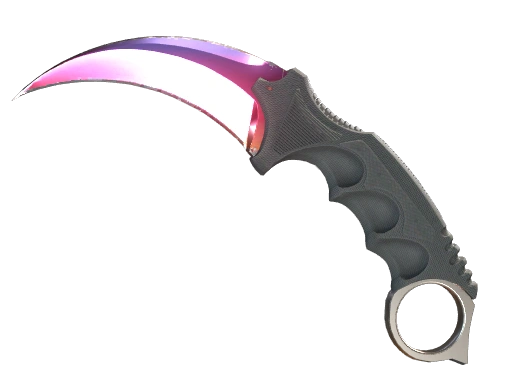
If you’re wondering how to check float values or what to look for when inspecting CS2 skins, keep in mind that the most expensive CS2 skins can be worth thousands of dollars, and the prices often differ between each wear rating. In some cases, the Factory New versions can be worth way, way more than their Battle-Scarred counterparts. Wear rating isn’t the only important factor however, since skin patterns can play an even bigger role. When it comes to skins such as Karambit Blue Gem, small differences in skin patterns can mean hundreds of thousands of dollars in price difference.
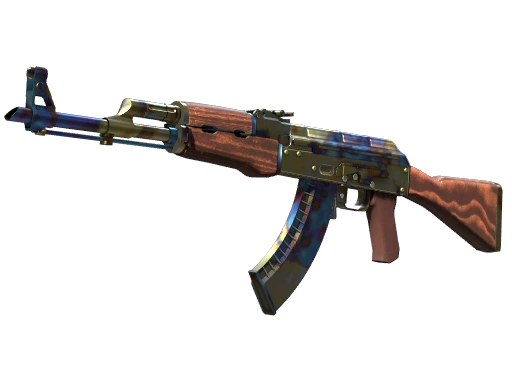
- Tier 17 patterns
Most blue on the playside
- 661
- 670
- 955
- 321
- 387
- 151
- 179
- Tier 26 patterns
Less blue, smaller premiums
- 592
- 4
- 168
- 429
- 905
- 13
Community tier lists; sources disagree on lower tiers.
If you’re just a gamer, inspecting CS2 skins is still something you shouldn’t overlook, especially if you plan to purchase an expensive CS2 skin. When you inspect skins in-game, make sure to check float values to assess the condition and value of a skin before making a purchase. This way, you’ll have the best idea of how your purchase will look, what to expect, and if the money you spent was worth it.
Inspect CS2 Skins
Right now, there are two main methods that you can use to inspect CS2 skins you don’t own. These are:
- third-party inspect sites
- Steam inventory links
Third-party tools are essential resources for inspecting, valuing, and trading CS2 skins, as they offer features beyond the in-game or Steam Market options.
This guide will walk you through each method step by step.
Here’s an in-depth explanation on how each of these methods works, and how you can use them to improve your trading experience:
Third-Party Inspect Sites
The easiest way to inspect CS2 skins is to simply use a dedicated third-party website, such as CSinspect. While it lets you inspect CS2 skins, their price, and try out different sticker combinations, you won’t be able to view your weapon skins in-game this way. These third-party sites allow you to preview how stickers and other modifications will look on your weapons, and you can apply multiple stickers to your weapons to customize their appearance.
Still, this is a very useful tool, particularly if you want to check out how new CS2 stickers will look on your gun, especially since third-party websites often provide you with the full price of your CS2 skin, including any stickers you want to view. Also, it’s much more convenient if you plan to inspect a larger number of CS2 skins, as it’s much quicker than other methods listed in this article.
What are the best websites for viewing high-quality CS2 skin inspections?
Players who are interested in inspecting CS2 skins via skin inspect websites have a number of different sites to choose from today. The best websites for inspecting CS2 skins are:
- CSinspect – Special CS2 skin inspect tool where users may enter an inspect link, float value and sticker position ID to preview the item with those stickers. A favorite among traders who want to keep it simple.
- CS2Preview – A platform that helps players inspect CS2 skins and compare community-made sticker creations and unusual skin combos. It offers an easy to use interface, which means you can scroll through tons of designs in a matter of moments, stumble upon new ideas and easily discover great creative setups you hadn’t really thought about before.
- CS2inspects – Not to be confused with CSinspect, CS2inspects is for players who want to inspect CS2 skins, inspect links and custom builds. The platform allows users to explore countless skins, floats and patterns while providing an intuitive user interface that makes browsing seamless. Its interactive inspection tools allow players to see new ideas, compare looks and find amazing item combinations they never saw before!
Steam Inventory Link
If you just want to quickly inspect CS2 skins in someone’s inventory, this can be done relatively easily by simply knowing the skin’s Steam inventory link. One great thing about this feature is that it lets you view a single particular skin from someone’s inventory, including all of its stickers and other modifications.
To use this method, you need the skin’s inspect link. Open the player’s Steam inventory (or a listing on the Steam Community Market), right-click the “Inspect in Game…” button next to the item and copy the link address. Opening that link launches CS2 and shows the exact skin in the inspect view. You can also use it with the developer console and CS2 console commands, as described below.
Sometimes, when you click an inspect link, it may open in your web browser instead of launching the game. If this happens, a quick fix is to enable the developer console, copy the part of the inspect link that starts with csgo_econ_action_preview (replace “%20” with a space if it appears) and paste it directly into the CS2 console, so the item is displayed in-game.
In Conclusion
If you’re planning big CS2 trades, inspecting skins is a very important feature that you can’t overlook. Before you trade, always make sure you know what you’re doing and how much your skins are worth.
If you enjoyed this article, make sure to check out the rest of our blog, where we regularly post more tips, tricks, CS2 news, and even offer free CS2 skins in giveaways!
Make sure to check out some of our other articles, including:
- Best AWP skins
- All Karambit cases
- How to make money on CS2?
- Cheapest Covert skins CS2
- CS2 player count
FAQ
Are there mobile apps that allow me to inspect CS2 skins on the go?
Yes, some skin viewer and trading apps on Google Play and the App Store include 3D previews of CS2 skins. For the exact float value, pattern and stickers of a specific item, it’s still best to open its inspect link in CS2 on your PC.
What tools or software can I use to inspect CS2 skins outside the game?
You can inspect CS2 skins outside the game mainly through third-party websites that provide 3D viewers and detailed inspection tools, as dedicated offline software is less common. Third-party inspect websites, like the ones listed above, let you paste a skin's inspect link or browse options, customize sticker combinations, and adjust float values and pattern IDs for a full preview. These web-based tools are convenient, accessible from any device, and let you experiment with different designs and check skin details faster than in-game inspection.
How to inspect skin wear and condition on CS2 skins?
To inspect CS2 skin wear, right-click a skin in your inventory and select “Inspect in Game” to view it in 3D. You can check the exact float value by clicking the “Info” button in the inspection window. For skins you don’t own, use the “Inspect in Game…” button on the Steam Community Market or in the owner’s Steam inventory, or paste the skin’s inspect link into a third-party inspect website.
Was this article helpful?One tap. It tells us what to update first.
Be the first to rate this article.
Thanks, noted. Alex reads these before every update.